
Welcome and Login
At the User login window, enter a valid username and password for your Smart Business Connect / Managed Business Connect as supplied by Swisscom and click the "Log in" button:
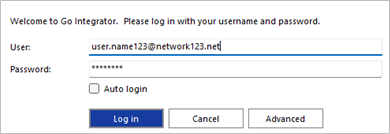
Selecting "Auto login" will skip the user login page on subsequent start up of the Go Integrator Cara software client.
First Login Wizard
At the first login after installation, a list of the available telephony devices for your user account will be displayed along with the option to enable Teams presence integration – tick this option to enable Teams presence integration immediately.
For the list of devices displayed, tick or untick the box to control which devices are offered within your Preferred Device selection list.
Left click on the current device name displayed to relabel the device, if required.
At least one device must be selected and if multiple devices are enabled, the Preferred device can be chosen from the drop down list.
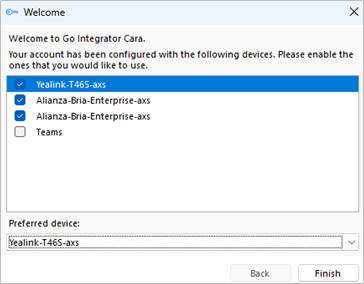
The selection and the device labels can be amended after login through Configuration > Devices and through the "Preferred Device" drop down list.
If "Teams" is selected, the Microsoft Teams user account will request login confirmation:
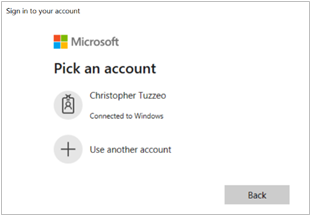
NOTE: additional configuration is required within Microsoft Teams administration
 Report this page