
Presence
The Presence window provides a quick way to check the availability of your co-workers. This is done via their Smart Business Connect / Managed Business Connect extension status (BLF-Busy Lamp Field) or, if enabled, via a blended combination of Smart Business Connect / Managed Business Connect extension status and Microsoft Teams Availability status.
In either Tray mode or AppBar mode, the Presence window can be re-sized and docked to the right or left edge of the screen using the dock "pin" icon.

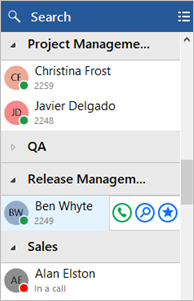
Presence with Smart Business Connect / Managed Business Connect BLF
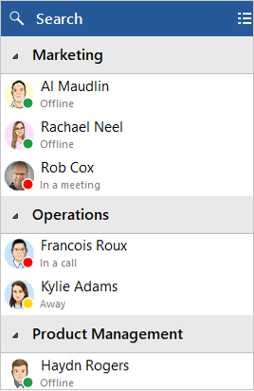
Presence with Teams Availability
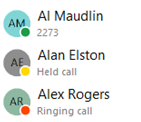
Extension status (BLF)
The user extension status is indicated by a mixture of icon color and status text:
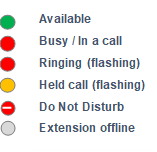
User Availability status
Co-worker availability is displayed as a combination of Smart Business Connect / Managed Business Connect extension status and Microsoft Teams user Availability status, indicated by a mixture of icon color and status text:
NOTE: An active call via the Smart Business Connect / Managed Business Connect extension will take precedence over Teams Availability status.
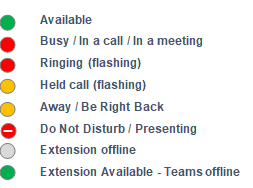
Large Directory Mode
The Presence list is auto-populated by up to 250 Smart Business Connect / Managed Business Connect users.
If your Smart Business Connect / Managed Business Connect User list contains fewer co-workers than this threshold, the Presence window will be automatically populated with contact icons for all co-workers. Above this threshold, the Presence window will not be automatically populated but instead, contacts can be found via the 'Search' facility and added as 'Favorites' to remain visible in the Presence window.
Contact Sorting
Co-workers in the Presence windows can be organized by the Smart Business Connect / Managed Business Connect configured Department, Location or Group, or to display contacts as a single alphabetically ordered list of co-workers, select None.
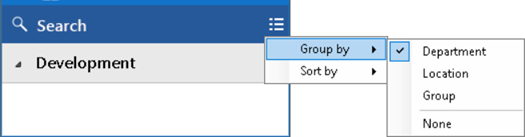
If preferred, contacts can be sorted by Telephone number instead of Name order:

Contact Search
The Search bar at the top of the Presence contact list will display items in the main presence window that match a search for either First name, Last name, Telephone number or even Teams Availability status (if enabled).
NOTE: The search includes ALL items found in the Smart Business Connect / Managed Business Connect "Users" directory, whether they are visible in the Presence window co-worker list or not.

Enter 2 or more characters to search the User list.
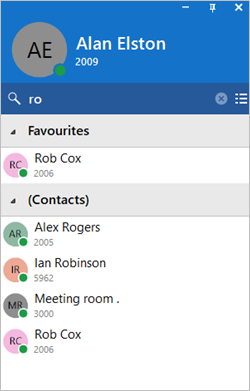
To cancel the search or start a new search, click the cancel icon:

Slide out menu
Hovering the mouse cursor on a contact will display the slide-out menu offering different actions depending on the current call status:
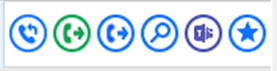
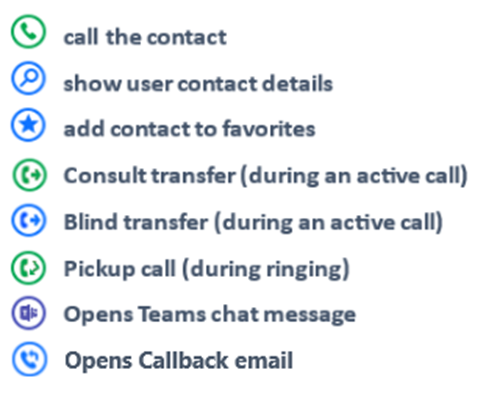
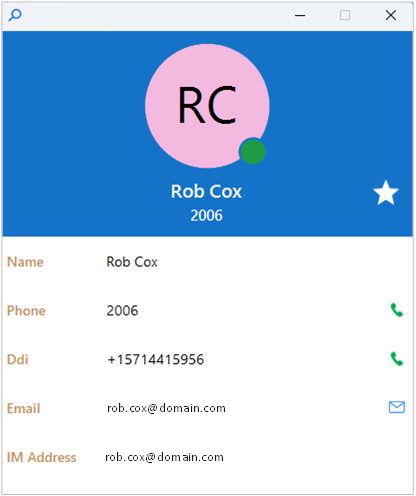
The "show user" option will open a separate window displaying all contact information available from the Smart Business Connect / Managed Business Connect user directory:
 Report this page